
Features
Every feature, explained
Compass brings a compass, a bubble level and inclinometer, a direction finder and saved bearings together in one app. Here's what each tool does, how it works and where its limits are.
Core tool
Compass with a clear, smooth heading
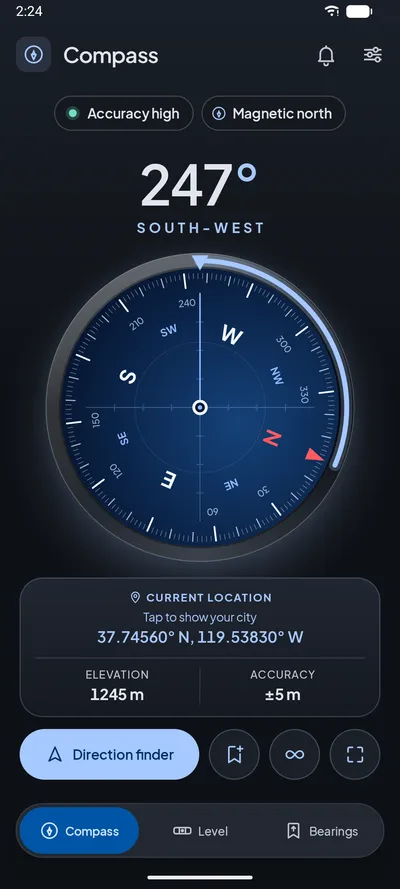
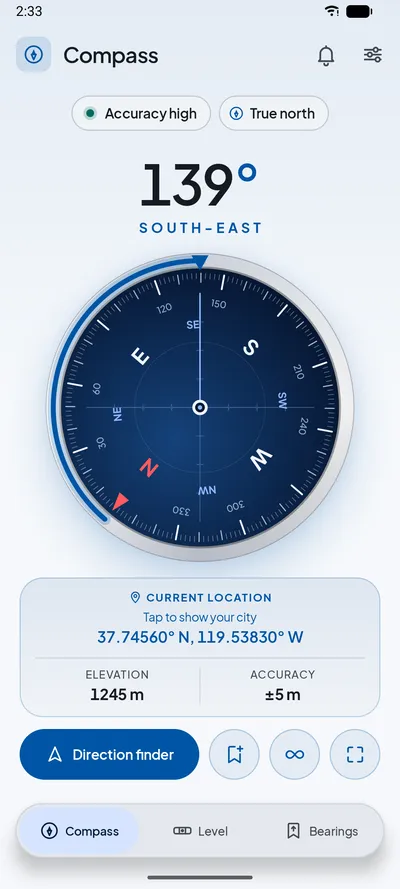
A navy watch-face dial with large numbers, the direction written out in words and a lit arc from north to where you're facing. It moves smoothly, without jitter, and behaves correctly as you pass north.
- Heading in whole degrees with the 8-point direction in words, for example 247° SOUTH-WEST
- Works flat (direction of the top edge) or held upright (direction of the back camera), blended smoothly in between
- Spring-damped needle that turns the short way: from 359° to 1° it moves forward 2°, not back 358°
- Optional gentle haptic tick as you pass N, E, S and W
- Portrait and landscape, with a side-by-side layout on tablets
- One-tap access to the direction finder, save bearing, calibration help and full screen
How it works
Compass uses Android's rotation-vector sensor when your phone has one, and falls back to the accelerometer plus magnetometer when it doesn't. The text is rounded with a small 0.2° dead band so the number doesn't flicker, and the direction letters are derived from that same rounded number, so the words and the number always agree: 359.6° shows "0° NORTH".
If the sensors can't be started, you see "Starting" or a clear "Unavailable" message with the reason. The app never shows a made-up heading.
Unique
Trust checks and calibration help
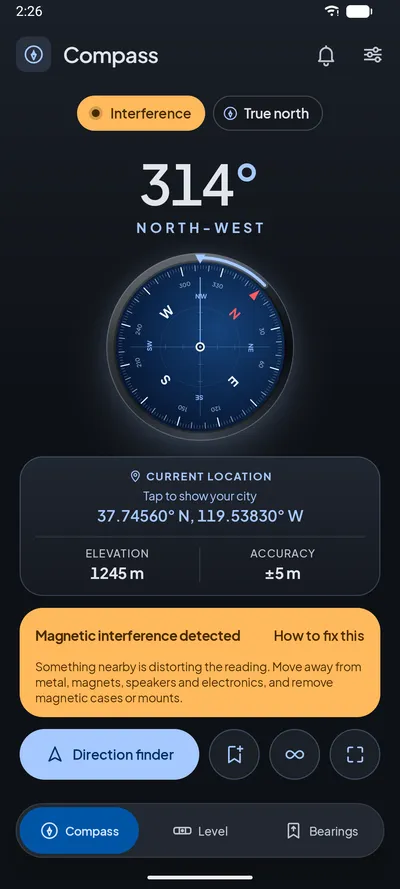
This is what makes Compass different. It continuously checks whether the reading can be trusted and explains problems in plain words, with a fix.
- Calibration needed when the sensor reports low or unreliable accuracy, or the fused heading's error estimate is large
- Interference when the magnetic field is outside the normal 20–70 µT range, a sign of nearby metal, magnets or electronics
- Check calibration when the field doesn't match the Earth's field for your location (World Magnetic Model)
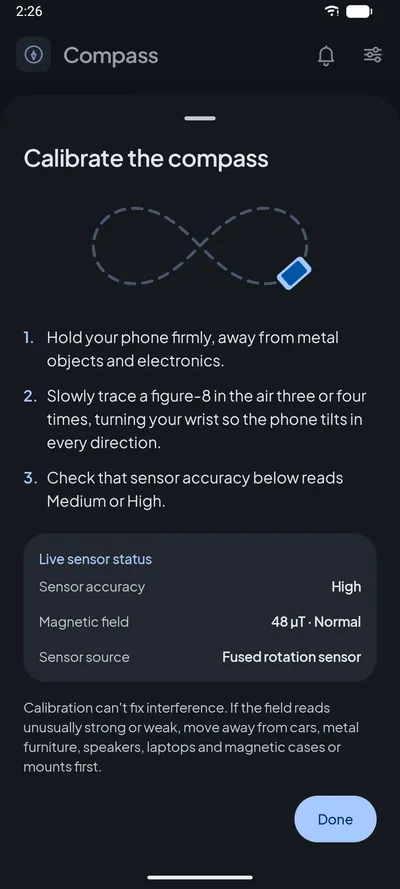
- Step-by-step figure-8 calibration sheet with live status
- Live sensor details: accuracy, field strength and sensor source
- Warnings use words and icons, not colour alone
Tip: for the best accuracy, keep the phone away from laptops, speakers, magnets, metal tables and cars, take off magnetic cases and mounts, and trace a figure-8 when Compass asks you to calibrate.
How it works
Warnings follow a priority order: interference first, then calibration needed, then a field mismatch. Each check has hysteresis, which means a warning only clears once the value is comfortably back inside the safe range, so the status doesn't flicker on and off.
The field-mismatch check compares the measured dip angle and strength with the World Magnetic Model for your position and flags a difference of more than about 15° or 15 µT. It needs a location fix, so it runs only when you've allowed location.
Navigation
True north, coordinates and elevation
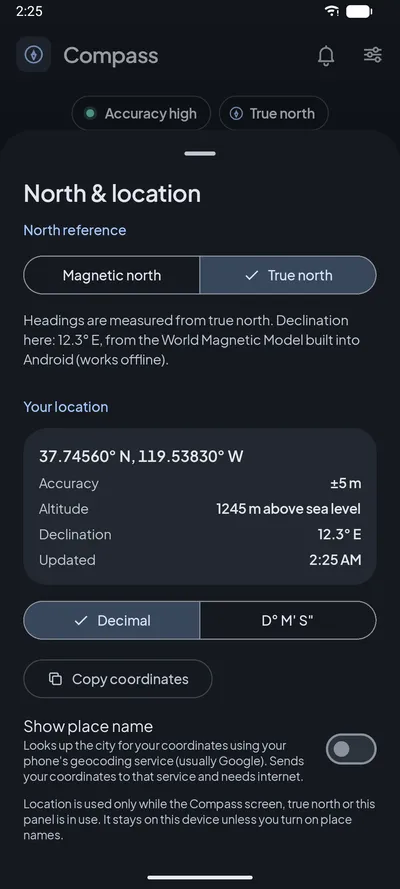
Choose magnetic or true north. True north uses your local magnetic declination, calculated on the phone, so it works with no signal. The same panel shows where you are.
- Magnetic or true north, switchable from the north chip or Settings
- Declination from the World Magnetic Model built into Android, recalculated for each location fix
- Coordinates in decimal degrees or degrees-minutes-seconds, with one-tap copy
- Elevation (height above sea level on Android 14+, approximate GPS height on older versions) and accuracy
- Optional city name, off by default
- Never labelled "true" without a location fix: you'll see "Magnetic · finding location" instead
How it works
For true north alone, Compass asks for low-power location updates (about once a minute, or after 500 m), and approximate location is enough. Precise updates every second or two run only while a screen that shows your location is open. Old cached fixes (more than two minutes old) are ignored.
Location permission is requested only when you turn on a feature that needs it, is used only in the foreground, and is never stored.
Core tool
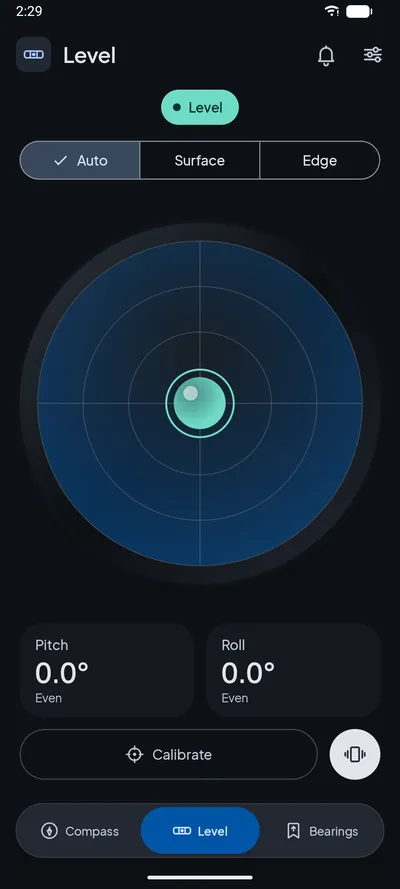
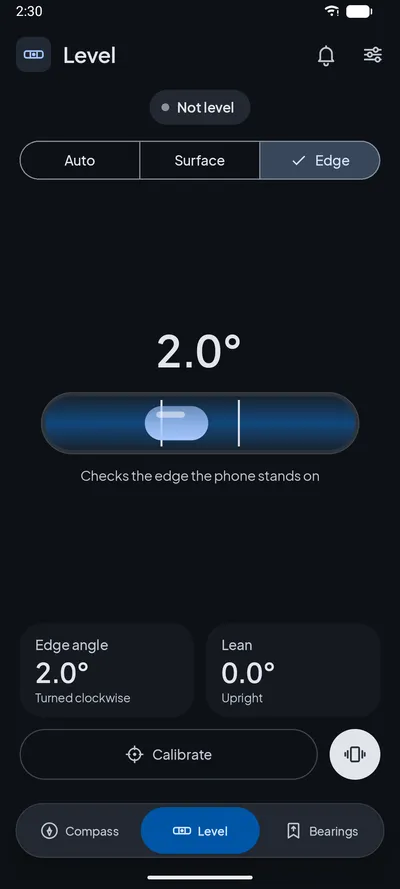
Bubble level and inclinometer
Check that a shelf, frame, table or appliance is really straight, or measure the tilt of a surface, to a tenth of a degree.
- Surface mode: a bubble level showing pitch and roll
- Edge mode: a tube level for frames, shelves and worktops
- Auto mode switches between them as you move the phone
- Readings to 0.1° with the direction in words, such as "Top edge higher"
- Adjustable tolerance from ±0.1° to ±2.0° and one vibration when it becomes level
- Set zero calibration for cases and camera bumps, stored separately per mode
How it works
The level uses Android's gravity sensor, or a filtered accelerometer if there isn't one. Auto mode switches to Edge when the phone is more than 50° from flat and back to Surface below 40°, so it doesn't flip back and forth at the boundary.
While the phone is moving, the level shows "Hold still" rather than a misleading number. Set zero is refused while moving, beyond 5° of tilt, or in the wrong pose, each with its own message. The screen orientation is locked while the level is open so the layout doesn't rotate under your hand.
Navigation
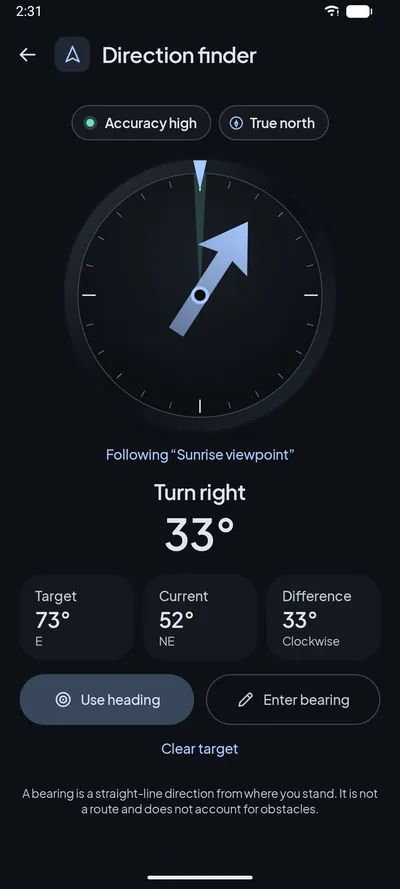
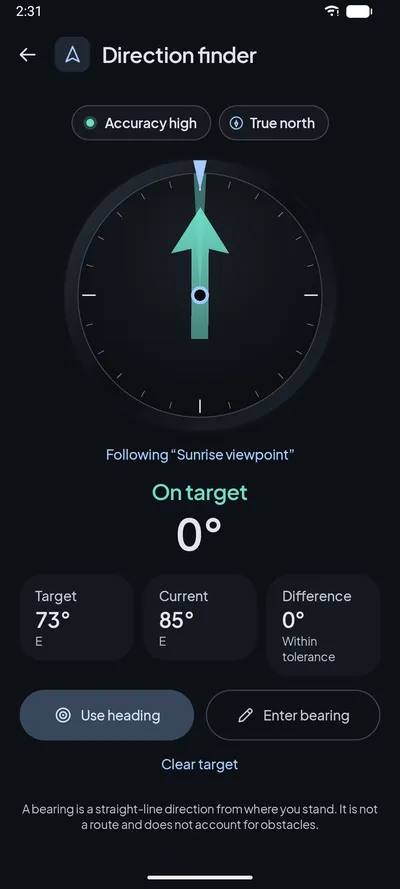
Direction finder
Turn a bearing from a map, a friend or an earlier reading into simple guidance: an arrow and words that tell you which way to turn, until you're on target.
- Set a target from your current heading, by typing it or from a saved bearing
- Type 0–360° (with "." or "," decimals and an optional °) or a compass point such as NE
- The arrow and the words always agree: Turn left, Turn right, Turn around, On target
- Target, Current and Difference tiles
- Adjustable on-target tolerance from ±1° to ±10° (default ±3°) with a single vibration on arrival
- Your target is remembered, even after you close the app
A bearing is a straight line, not a route. Compass reminds you of this on screen. Use a map to plan a path around obstacles.
How it works
The difference is always the shortest turn, between −180° and +180°. Targets remember whether they were set in magnetic or true north and are converted with the local declination when needed; if a conversion isn't possible yet, the arrow is hidden and the screen explains why, rather than pointing the wrong way.
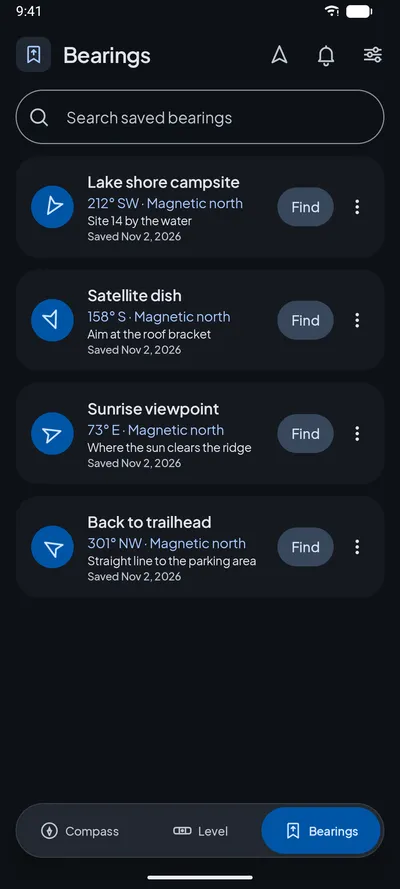
Organise
Saved bearings
Keep the directions you come back to, such as "Satellite dish 158°" or "Sunrise viewpoint 73°", with a name and a note.
- Save from the Compass screen or from the direction finder
- Name (up to 60 characters) and optional description (up to 280)
- Search by name or description
- Find: open any bearing in the direction finder with one tap
- Edit the name and note, or delete it
- Each bearing remembers its north reference
How it works
Bearings are stored in a local database on your device, newest first. The measured direction itself can't be edited, because it's a measurement; you can change the name and description. Saved bearings don't include your location; that was left out on purpose so the app doesn't keep a record of where you've been.
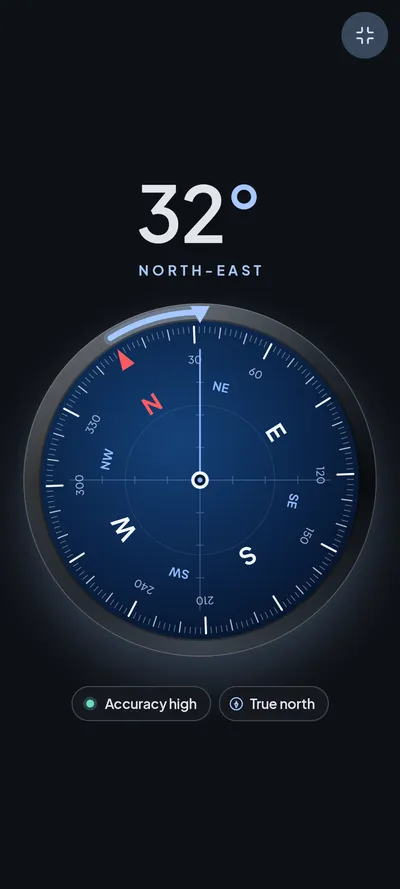
Display
Full-screen compass
A larger, distraction-free compass for when you need to keep an eye on your heading.
- Hides the status and navigation bars (swipe to reveal them)
- Keeps the screen on, only while full screen is open
- Shows the same warnings and chips as the main compass
Stay informed
Stay informed
Notification inbox
Occasional app news, tips and update notices, kept in an inbox you control.
- Bell icon with an unread badge in the top bar
- Read later, mark as read, delete one or delete all
- Links open only secure (https) pages
- Notification permission is asked only when you choose to turn notifications on
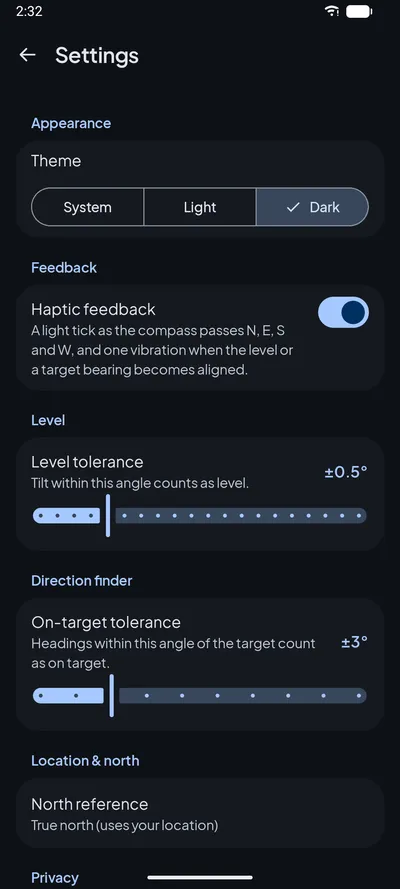
Make it yours
Settings, themes and accessibility
Adjust the app to how you work, and read it comfortably in any light.
- Theme: Dark (default), Light or follow the System
- Haptic feedback on or off
- Level tolerance and on-target tolerance
- North reference: magnetic or true
- Share usage data on or off
- Screen reader labels, support for large text, and status shown in words rather than colour alone
Offline
What works offline
The instruments run entirely on your phone. Internet is only used for a few optional extras.
| Works offline | Needs internet |
|---|---|
| Compass and all trust checks | Optional city name (off by default) |
| Bubble level, edge level and inclinometer | Receiving notifications |
| Direction finder and saved bearings | Sending usage statistics and crash reports (queued until online; can be turned off) |
| True north, coordinates and elevation (GPS + on-device magnetic model) | — |
Requirements
Requirements and sensors
| Android version | Android 7.0 (Nougat) or later |
|---|---|
| Devices | Phones and tablets, portrait and landscape |
| Compass sensor | Rotation-vector sensor when available, otherwise accelerometer + magnetometer. A magnetometer is required for the compass. |
| Level sensor | Gravity sensor when available, otherwise a filtered accelerometer |
| Location (optional) | GPS or network location, for true north, coordinates, elevation and the field check |
| Language | English |
| Price model | No ads, no account, no subscriptions |
Honest limits
What Compass can't do
We'd rather tell you up front.
It can't fix bad hardware
Accuracy depends on your phone's magnetometer and accelerometer. Compass detects and explains problems, and relies on Android's own calibration plus the figure-8 prompt, but it can't repair a faulty sensor.
True north needs a fix
Until your phone has a location, headings stay magnetic and are labelled that way.
A bearing isn't a route
The direction finder points in a straight line. It doesn't know about roads, rivers or cliffs.
Field check on the Compass screen only
The comparison with the World Magnetic Model runs on the Compass screen. The direction finder still shows calibration and interference warnings.
Try Compass on your phone
Find your heading, level a shelf or follow a bearing, and always know whether to trust the reading.